Nervecentre V9.0 Help for Users
Finding a patient's record
You can view details about a patient from their patient record. A patient's record includes:
-
Clinical information
For example, observations, assessments, and clinical notes.
-
Administrative information
For example, the patient's referrals, appointments, and the waiting lists the patient is on.
The types of information you can view from a patient's record depends on your permissions, your device, and the context you are in.
 About sex and gender identity
In some parts of Nervecentre, gender identity and sex are shown as individual fields.
For example, on a desktop, you can view this information from Patient Detail > Edit Details.
-
If a patient's sex is male and they identify as male, Gender Identity / Sex shows 'Male / Male'.
-
If a patient's sex is male and they identify as female, Gender Identity / Sex shows 'Female / Male'.
In other parts of Nervecentre, gender identity and sex are shown on one line.
For example, on a mobile, you can view this information from a patient's record.
-
If a patient's sex is male and they identify as male, 'Male' is shown.
-
If a patient's sex is female and they identify as male, 'Male*' is shown.
On a desktop, this information is shown in the patient banner under the patient's date of birth.
Finding a patient's record on a mobile
Finding your patient list
You can find a list of your patients. On a mobile, you receive tasks and alerts for patients on your patient list.
On iOS
-
Select Patients.
-
At the top of the screen, select .
-
Select a patient list.
To search for a patient list, select .
-
Select an option.
-
To view a patient list, select View only.
-
To view a patient list and set the patient as your personal list, select Set as My Patients.
You receive tasks and alerts for patients on your personal list.
-
On Android
-
From , select Patients.
-
At the top of the screen, select .
-
Select a patient list.
To search for a patient list, select .
-
Select an option.
-
To view a patient list, select VIEW ONLY.
-
To view a patient list and set the patient as your personal list, select SET MY LIST.
You receive tasks and alerts for patients on your personal list.
-
Finding a patient's record
To view a patient record for a patient who is attending UEC Urgent and Emergency Care. In Nervecentre, this covers 'ED areas' and SDEC., or who is admitted:
-
Select Patients.
-
On iOS, select Patients.
-
On Android, select > Patients.
-
-
To find a patient's record:
-
Search for the patient
-
Scan the patient's wristband
-
Select the patient from your patient list
-
To view a patient record for an outpatient in the context of their appointment:
-
Select Outpatient.
-
On iOS, you might need to select More to see Outpatient.
-
On Android, select > Outpatients.
-
-
Choose a clinic and a day to view.
-
Select the patient's appointment.
Overview of a patient's record from Patients on iOS
From Patients, select an inpatient, or UEC Urgent and Emergency Care. In Nervecentre, this covers 'ED areas' and SDEC. patient, to open the patient's record in the context of their visit A visit to the hospital. For example, an inpatient ward, or an ED area. There can be multiple visits within an episode..
From Outpatient, select an outpatient to open the patient's record in the context of the patient's appointment A visit to a clinic as an outpatient. There can be multiple appointments within an episode..
Read about patient records for outpatients
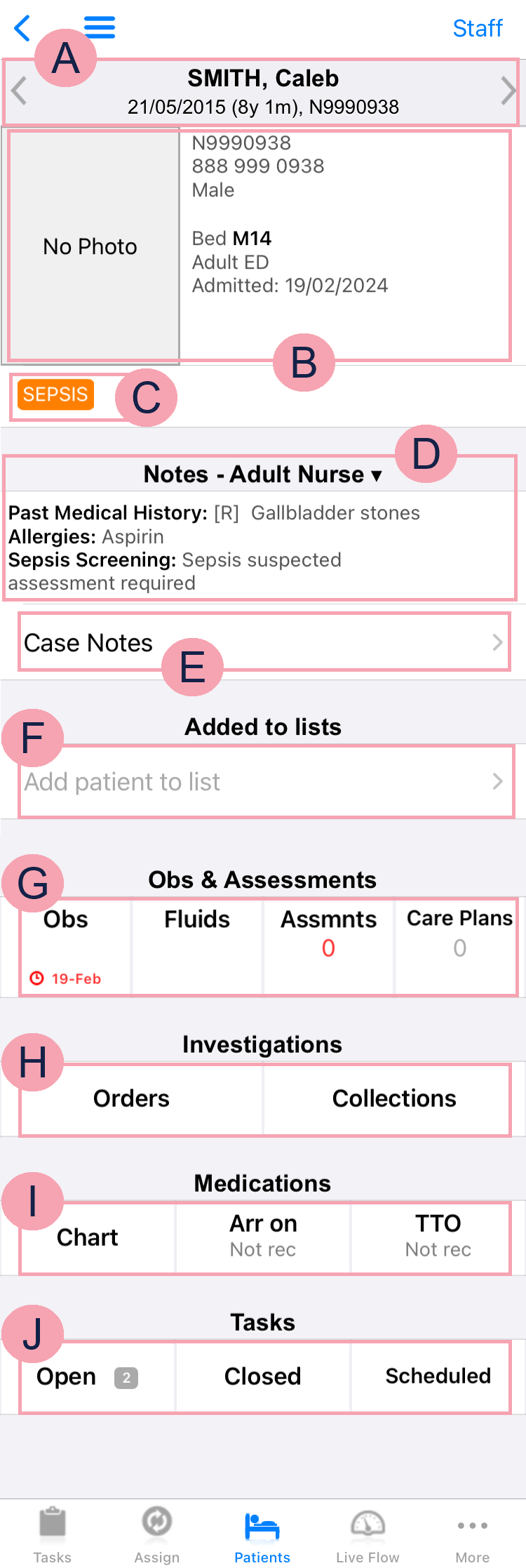
The image below shows what a patient's record looks like if you open it from Patients. This patient is attending UEC Urgent and Emergency Care. In Nervecentre, this covers 'ED areas' and SDEC..
|
|
Select to view your QR code, change the QR code scanner from internal to external, or log out. |
|
|
Select to receive notifications about this patient. |
|
|
Shows the patient's name, date of birth, and hospital number. Select and to view other patients on your patient list. |
|
|
Shows the patient's identifier numbers A number that identifies the patient. For example, a hospital number, NHS number, or local patient identifier., sex, gender identity, bed, ward, and date they were admitted. Select to transfer the patient to another bed or ward. Read more about transferring a patient to another bed Read more about transferring a patient to another ward Read more about transferring a patient to another area in UEC |
|
|
Shows patient tags and bed tags. For example, your organisation might have patient tags for sepsis, AKI, pregnancy, or disabilities. |
|
|
Shows clinical notes that contain information. Select to select a clinical note profile. Different clinical note profiles contain different clinical notes. Your access to clinical note profiles and clinical notes depends on your permissions. |
|
|
Select to view case notes. |
|
|
Select to add the patient to a patient list. |
|
|
Obs shows the time an observation is due and if the observation is overdue. Select Obs to record observations and view the history of observations. Fluids shows the time fluid balance entries are due and if an entry is overdue. If a chart is active, the current input and output values are shown. Select Fluids to view and record a fluid balance. Assmnts shows the number of completed assessments with a red RAG A red/amber/green ‘traffic light’ rating system. It can denote progress with various milestones rating. Below the number is the due date of the next assessment. Select Assmnts to view and complete assessments. Care Plans shows the number of care plans the patient is on. Select Care Plans to view and add care plans. |
|
|
Select Orders to view orders, place new orders, and view results. Read more about viewing orders Read more about placing orders Read more about viewing results Select Collections to record a sample collection. |
|
|
Select Chart to view the MAR Medicines Administration Record. Also known as drug chart. A list of all medication prescribed and administered (given)., and to prescribe and administer medications. Arr on shows the status of arrival medications. Select Arr on to view and add arrival medications. Read more about the status of arrival medications Read more about viewing and adding arrival medications TTO shows the status of TTOs To Take Out. Each medication added to the discharge letter can be called a TTO. Also, the list of medications on the discharge letter can be called the TTO.. Select TTO to view and edit TTOs. |
|
|
Open shows the number of open tasks. Select Open to view open tasks and add tasks. Select Closed to view closed tasks. Select Scheduled to view scheduled tasks. |


 Overview of a patient's record from Patients on Android
From Patients, select an inpatient, or UEC Urgent and Emergency Care. In Nervecentre, this covers 'ED areas' and SDEC. patient, to open the patient's record in the context of their visit A visit to the hospital. For example, an inpatient ward, or an ED area. There can be multiple visits within an episode..
From Outpatients, select an outpatient to open the patient's record in the context of the patient's appointment A visit to a clinic as an outpatient. There can be multiple appointments within an episode..
Read about patient records for outpatients
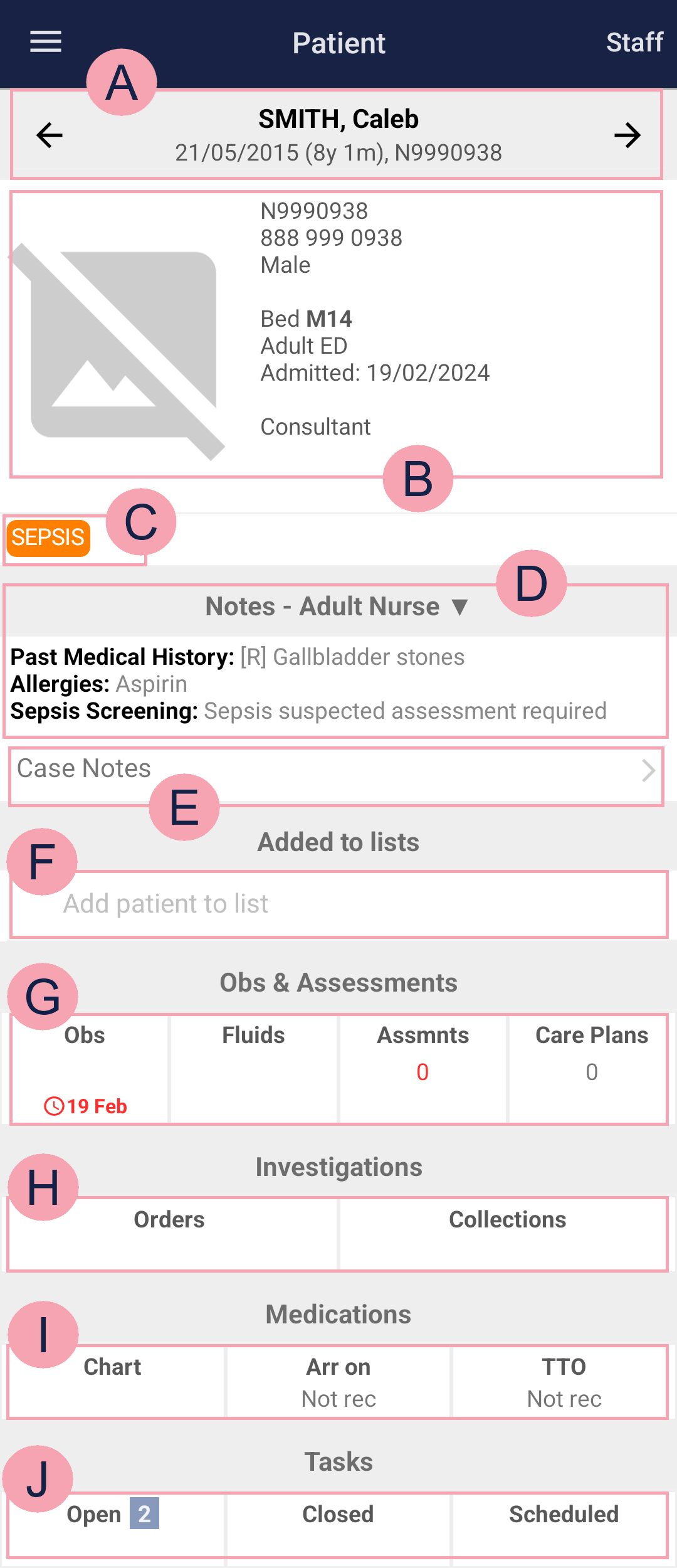
The image below shows what a patient's record looks like if you open it from Patients. This patient is attending UEC Urgent and Emergency Care. In Nervecentre, this covers 'ED areas' and SDEC..
|
|
Select to receive notifications about this patient. |
|
|
Shows the patient's name, date of birth, and hospital number. Select and to view other patients on your patient list. |
|
|
Shows the patient's identifier numbers A number that identifies the patient. For example, a hospital number, NHS number, or local patient identifier., sex, gender identity, bed, ward, date they were admitted, and their consultant. Select to transfer the patient to another bed or ward. Read more about transferring a patient to another bed Read more about transferring a patient to another ward Read more about transferring a patient to another area in UEC |
|
|
Shows patient tags and bed tags. For example, your organisation might have patient tags for sepsis, AKI, pregnancy, or disabilities. |
|
|
Shows clinical notes that contain information. Select to select a clinical note profile. Different clinical note profiles contain different clinical notes. Your access to clinical note profiles and clinical notes depends on your permissions. |
|
|
Select to view case notes. |
|
|
Select to add the patient to a patient list. |
|
|
Obs shows the time an observation is due and if the observation is overdue. Select Obs to record observations and view the history of observations. Fluids shows the time fluid balance entries are due and if an entry is overdue. If a chart is active, the current input and output values are shown. Select Fluids to view and record a fluid balance. Assmnts shows the number of completed assessments with a red RAG A red/amber/green ‘traffic light’ rating system. It can denote progress with various milestones rating. Below the number is the due date of the next assessment. Select Assmnts to view and complete assessments. Care Plans shows the number of care plans the patient is on. Select Care Plans to view and add care plans. |
|
|
Select Orders to view orders, place new orders, and view results. Read more about viewing orders Read more about placing orders Read more about viewing results Select Collections to record a sample collection. |
|
|
Select Chart to view the MAR Medicines Administration Record. Also known as drug chart. A list of all medication prescribed and administered (given)., and to prescribe and administer medications. Arr on shows the status of arrival medications. Select Arr on to view and add arrival medications. Read more about the status of arrival medications Read more about viewing and adding arrival medications TTO shows the status of TTOs To Take Out. Each medication added to the discharge letter can be called a TTO. Also, the list of medications on the discharge letter can be called the TTO.. Select TTO to view and edit TTOs. |
|
|
Open shows the number of open tasks. Select Open to view open tasks and add tasks. Select Closed to view closed tasks. Select Scheduled to view scheduled tasks. |
Overview of a patient's record from Outpatient on iOS
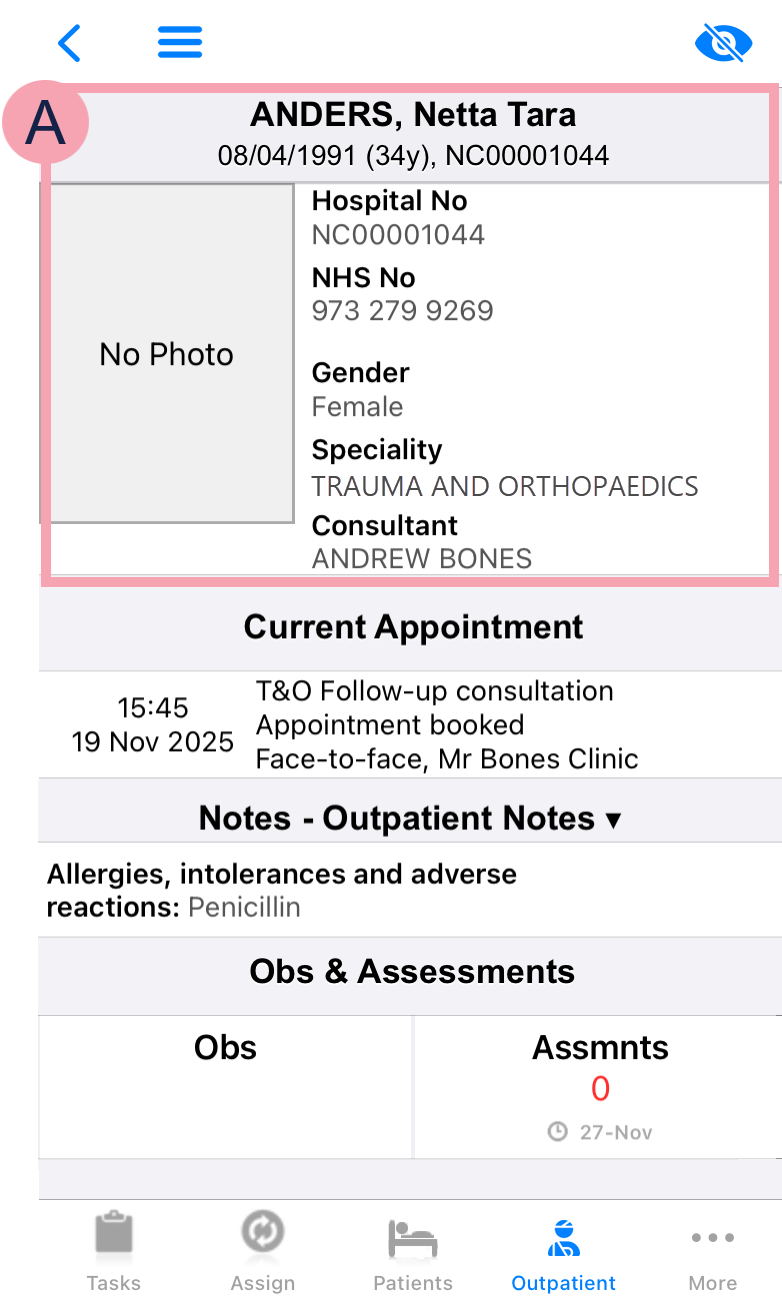
To view a patient's record in the context of their appointment, from Outpatient, select the patient's appointment.
|
|
Select to view your QR code, change the QR code scanner from internal to external, or log out. |
|
|
Select to receive notifications about this patient. |
|
|
Shows information about the patient, including their name, date of birth, identifier numbers A number that identifies the patient. For example, a hospital number, NHS number, or local patient identifier., and gender identity. Shows the specialty and consultant for the patient's referral. This is usually the same as the specialty and consultant for the appointment and episode of care. |
|
Current Appointment |
Shows information about the patient's appointment. |
|
Notes |
Shows clinical notes that contain information. Select to select a clinical note profile. Different clinical note profiles contain different clinical notes. Your access to clinical note profiles and clinical notes depends on your permissions. |
|
Obs |
Select to record observations and view the history of observations. |
|
Assmnts |
Shows the number of completed assessments with a red RAG A red/amber/green ‘traffic light’ rating system. It can denote progress with various milestones rating. Below the number is the due date of the next assessment. Select Assmnts to view and complete assessments. |
Overview of a patient's record from Outpatients on Android
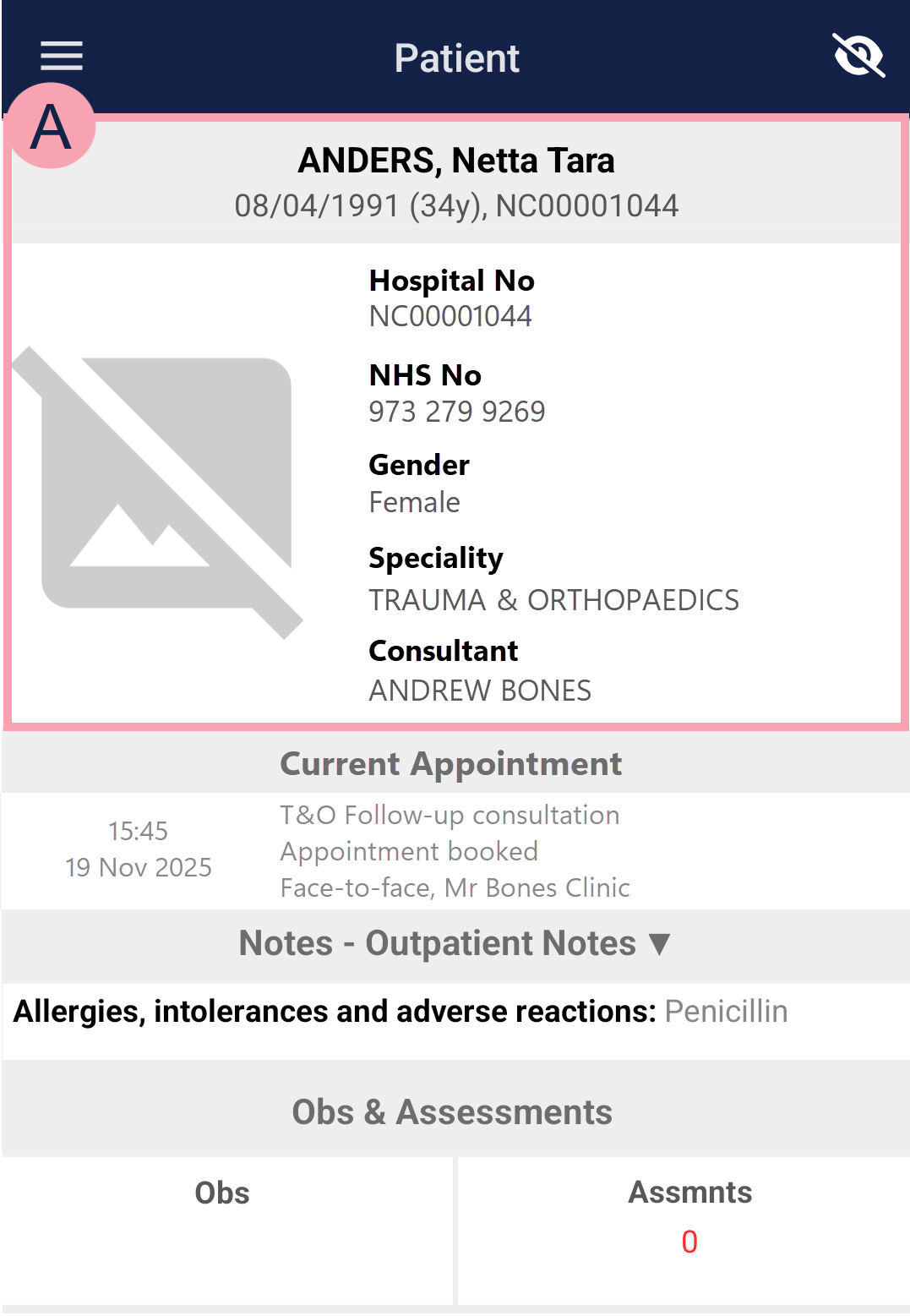
To view a patient's record in the context of their appointment, from Outpatients, select the patient's appointment.
|
|
Select to receive notifications about this patient. |
|
|
Shows information about the patient, including their name, date of birth, identifier numbers A number that identifies the patient. For example, a hospital number, NHS number, or local patient identifier., and gender identity. Shows the specialty and consultant for the patient's referral. This is usually the same as the specialty and consultant for the appointment and episode of care. |
|
Current Appointment |
Shows information about the patient's appointment. |
|
Notes |
Shows clinical notes that contain information. Select to select a clinical note profile. Different clinical note profiles contain different clinical notes. Your access to clinical note profiles and clinical notes depends on your permissions. |
|
Obs |
Select to record observations and view the history of observations. |
|
Assmnts |
Shows the number of completed assessments with a red RAG A red/amber/green ‘traffic light’ rating system. It can denote progress with various milestones rating. Below the number is the due date of the next assessment. Select Assmnts to view and complete assessments. |
Finding a patient's record on a desktop
Finding your patient list
A patient list dashboard is the combination of a patient list and clinical note profile. Patient list dashboards can contain inpatients, patients in UEC, patients in assessment units, ward attenders, and patients in a mortuary.
You can view a list of outpatients in a clinic list.
Read more about viewing clinic lists
To view a patient list dashboard:
-
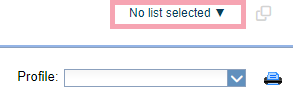
From Inpatients > Patient List, select .
-
Select a patient list.
To search for a list, from Filter / Search, enter the name of a patient list.
-
From Profile, select a clinical note profile.
Read more about viewing a clinical note profile
The clinical note profiles you see depend on your permissions.
-
Depending on your organisation, you can filter your patient list dashboard.
Finding a patient's record from Inpatients
From Inpatients, you can view patient records for inpatients, patients in UEC, patients in assessment units, ward attenders, and patients in a mortuary. The options you have available depend on your permissions and your organisation.
-
Select Inpatients.
-
To find a patient's record:
-
From Patient Detail, search for the patient.
-
From Patient Detail, scan the patient's wristband.
-
From Patient List, double-click on the patient's name in your patient list.
Patients who are admitted appear in this list.
-
From Patient List, select to search for a patient.
-
From Expects, search for the patient.
Patients with preadmissions appear in this list.
-
From Discharged, search for the patient.
Patients who have been discharged appear in this list.
-
Finding a patient's record from Outpatients
From Outpatients, you can view patient records for outpatients.
-
Select Outpatients.
-
To find a patient's record:
-
From Patient Detail, search for the patient.
-
From Clinic List, double-click on the patient's name in your clinic list.
Depending on your permissions, you might need to select Go to patient record.
Patients appear in your clinic list if they have an appointment.
-
From Worklists, select an item in a worklist, then select the patient.
For example, you might have a worklist containing all the patients with referrals that need triage.
The worklists available to you depend on your organisation.
-
From Manage, select a list of patients to view, and select the patient from that list.
For example, you can view a list of patients on a waiting list.
-
Finding a patient's record from other areas of Nervecentre
Depending on your permissions, you might have access to other areas of Nervecentre. For example, if you work in the hospital pharmacy, you might have access to Pharmacy.
-
Select one of the following options from the navigation bar on the left.
-
Collections
-
Community
-
Live Flow
-
Theatres
-
Pharmacy
-
Back office
-
Bed Management
-
-
From Patient Detail, search for the patient.
About the patient banner
From Patient Detail, you can view the patient banner. The colour of the patient banner depends on if the patient is alive or deceased, and if the patient is an inpatient, a patient in UEC, or an outpatient.
| Alive, or deceased? | Type of patient | Patient banner |
|---|---|---|
| Alive |
Inpatient Patient in UEC |
The patient banner is navy blue. |
| Alive | Outpatient | The patient banner is a light blue. |
| Deceased |
Inpatient Patient in UEC Outpatient |
The patient banner is grey and DECEASED is shown. |
Overview of Inpatients > Patient Detail
From Inpatients > Patient Detail, search for a patient to view their details.
Read more about searching for a patient
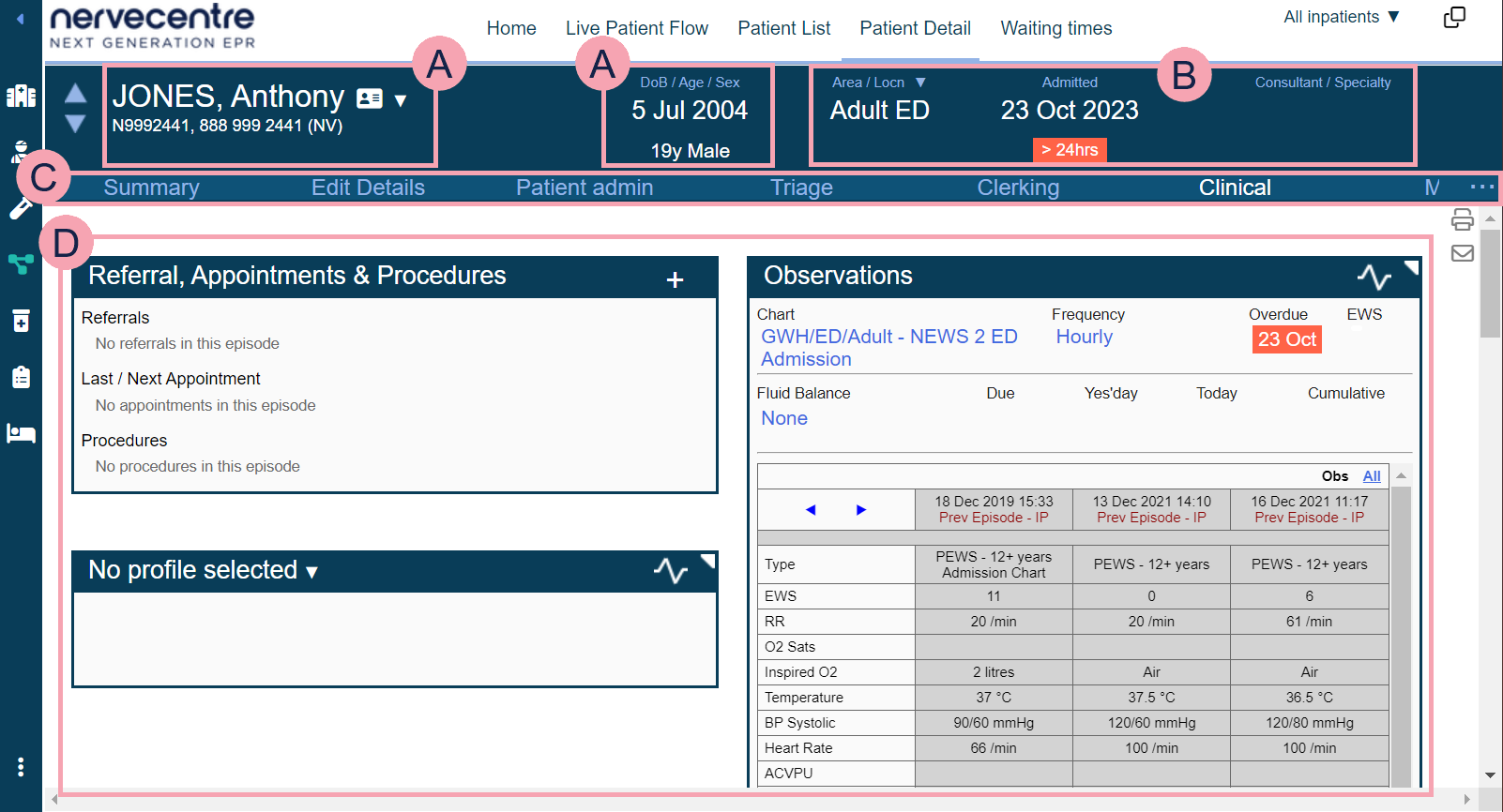
|
|
Move between patients on the same patient list. |
|
|
Shows the patient's name and identifier numbers A number that identifies the patient. For example, a hospital number, NHS number, or local patient identifier.. Select the patient's name to search for another patient. Read more about searching for a patient Shows patient tags and bed tags. For example, your organisation might have patient tags for sepsis, AKI, pregnancy, or disabilities. |
|
|
Mouseover to see the patient's address, and their GP's address. |
|
|
Select to receive notifications about this patient. |
|
DoB / Age / Sex |
Shows the patient's date of birth, age, and sex. |
|
Ward / Bed |
Read more about viewing information about the patient's current visit Select ▼ to transfer the patient. |
|
Admitted |
Admitted shows the date the patient was admitted and the time since admission.
|
|
Consultant / Specialty |
Shows the name of the consultant and the consultant’s specialty. |
|
|
Navigate between the clinical areas of Patient Detail. Select to see more areas. The areas available to you depend your organisation. |
|
|
Shows detailed information about the patient. The information shown depends on the area you select. |
Overview of Outpatients > Patient Detail
From Outpatients > Patient Detail, search for a patient to view their details.
Read more about searching for a patient
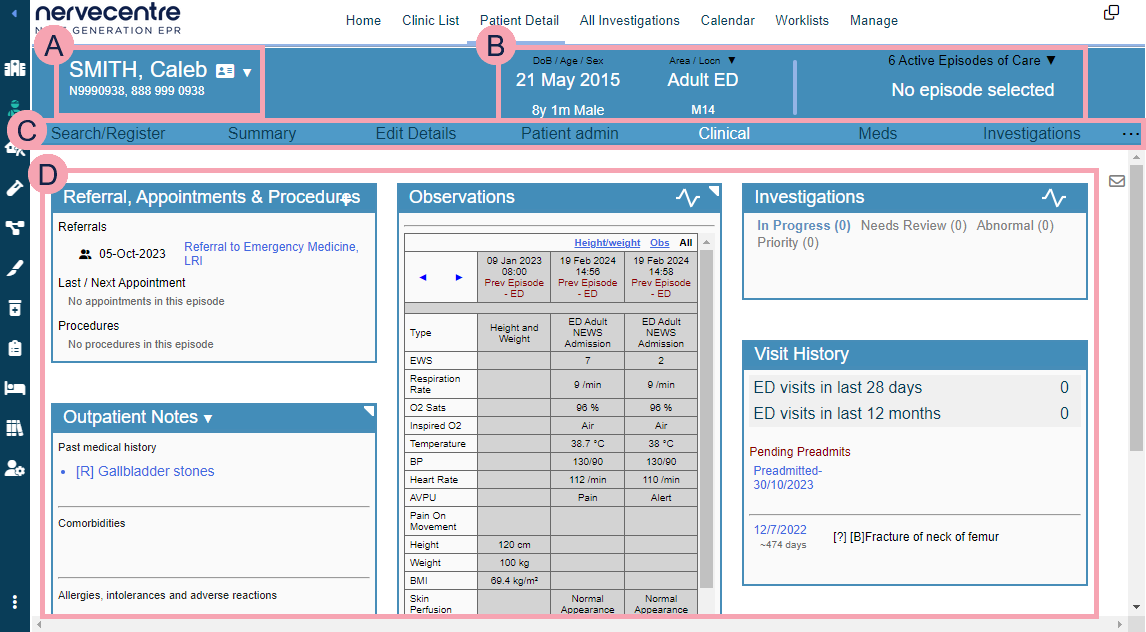
|
|
Shows the patient's name and identifier numbers A number that identifies the patient. For example, a hospital number, NHS number, or local patient identifier.. Select the patient's name to search for another patient. Read more about searching for a patient Shows patient tags and bed tags. For example, your organisation might have patient tags for sepsis, AKI, pregnancy, or disabilities. |
|
|
Mouseover to see the patient's address, and their GP's address. |
|
|
Select to receive notifications about this patient. |
|
DoB / Age / Sex |
Shows the patient's date of birth, age, and sex. |
|
Ward / Bed |
Read more about viewing information about the patient's current visit If the patient is an inpatient or ED patient, select ▼ to transfer the patient. |
|
n Active Episodes / Referrals |
Select to choose an episode of care. This list only shows active episodes of care, and n is the number of active episodes. The name of the consultant for that episode, and the specialty, also displays. |
|
|
Navigate between the clinical areas of Patient Detail. Select to see more areas. The areas available to you depend your organisation. |
|
|
Shows detailed information about the patient. The information shown depends on the area you select. |
Did you find this article helpful? Yes No
Sorry about that. Our help is a work in progress and we welcome any feedback.
Why wasn't this helpful? Please select one reason:
Great!
Thanks for taking the time to give us some feedback.